Galvo Functions
IMPORTANT: Galvo functionality is available only when you use a PC-based controller.
Tip: For a comprehensive guide to advanced calibration, refer to 2D Galvo Mark and Measure for Automation1.
Automation1 has galvo marking capabilities when used with the GI4 or GL4 hardware. The GI4 and GL4 are galvo drives that control a galvo scanner. You can issue motion to any galvo axis by using the motion functions in the controller, such as MoveRapid(), MoveLinear(), MoveCw(), MoveCcw(), and MoveDelay().
This page includes the galvo functions that are available in the AeroScript API. The galvo functions let you configure and control the laser and advanced galvo-specific features.
WARNING: The GI4 and GL4 can control a laser scan system. Obey all laser safety rules when you install and use one of these galvo drives. You are responsible for the safety of your laser system.
Improve Laser Accuracy with Mark and Measure
The Mark and Measure guide gives you an easy-to-use, iterative calibration loop that corrects physical deviations in your 2D galvo scanner. This guide shows you how to find the optimal focal distance, interpolate calibration tables, configure galvo power correction, and keep your laser spot on target. It also has ready-to-use AeroScript programs that make system configuration easier.
If you want to prevent positioning errors and maintain a constant fluence across your working area, refer to 2D Galvo Mark and Measure for Automation1.
Configure the Laser
The laser configuration commands specify the behavior of the three laser output signals of the GI4 or GL4. For more information about the signals, refer to the hardware manual for your galvo drive. The laser output signals are on the Laser Interface connector of the GI4 and the Laser Output connector of the GL4. You must use the functions in this section to configure the laser before you can command the laser in your AeroScript program.
Select Laser Mode
When you issue the GalvoConfigureLaserMode() function, the changes to the laser configuration are sent to your GI4 or GL4. Instructions about how to use the GalvoConfigureLaserMode() function are in the drop-down below.
WARNING: Do not issue the GalvoConfigureLaserMode() function when the laser is being commanded to fire.
Use the GalvoConfigureLaserMode() function to select the mode in which the laser output signals operate. When the laser is being commanded to fire, O3 is active. When the laser is not being commanded to fire, O3 is not active. To set the active polarity (for RS-422 outputs) and transistor state (for opto-isolated outputs) of the laser output signals, use the switch on the GL4. You cannot configure the active polarity on the GI4. For more information, refer to the hardware manual for your drive.
 How to set or change the laser configuration
- Based on the type of laser that you have and how the laser operates, select the correct laser mode. For more information about how different types of lasers apply to different laser modes, refer to the Typical Application and the Description columns of the table listed below.
- In your AeroScript program, type all the configuration functions that are applicable to your laser mode and give the correct values to their arguments. Refer to the Related Functions column of the table listed below.
- In your AeroScript program, issue the GalvoConfigureLaserMode() function and give the correct values to all arguments. Make sure the value for $laserMode is the laser mode that you want to use.
- Run your AeroScript program to activate the laser mode. All of the laser configuration information is sent to the controller and the new laser mode is immediately active.
IMPORTANT: For the laser output to activate, you must enable axes 1 and 2 of your galvo drive.
The table that follows shows the possible values for the $laserMode argument. Before you issue GalvoConfigureLaserMode(), you must configure the applicable functions in the Related Functions column of the table.
Table: $laserMode Argument Values
|
Value |
Typical Application |
Description |
Related Functions |
|---|---|---|---|
|
0 |
CO2 laser |
When the laser is firing, O1 and O2 are modulation signals with a configurable frequency and a fixed 180° phase shift. You can independently specify the O1 and O2 pulse widths. When the laser is not firing and you use the GalvoConfigureStandbyPeriod() and GalvoConfigureStandbyPulseWidth() functions to specify a standby period and pulse width, O1 and O2 output standby pulses. When the laser is not firing and you do not specify a standby period and pulse width, O1 and O2 are not active. |
GalvoConfigureLaserOutputPeriod() GalvoConfigureLaser1PulseWidth() GalvoConfigureLaser2PulseWidth() GalvoConfigureStandbyPeriod() GalvoConfigureStandbyPulseWidth() |
|
1 |
YAG laser |
O2 is a suppression pulse that is output when the laser starts firing. When the laser is firing, O1 is a periodic signal with a configurable frequency and pulse width. When the laser is not firing, O1 and O2 are not active. |
GalvoConfigureLaserOutputPeriod() GalvoConfigureLaser1PulseWidth() GalvoConfigureSuppressionPulseWidth() |
|
2 |
YAG laser |
O2 is a suppression pulse that is output when the laser starts firing. O1 does not become active until the suppression pulse stops. While the laser is firing, O1 is a periodic signal with a configurable frequency and pulse width. When the laser is not firing, O1 and O2 are not active. |
GalvoConfigureLaserOutputPeriod() GalvoConfigureLaser1PulseWidth() GalvoConfigureSuppressionPulseWidth() |
|
3 |
YAG laser |
O2 is a suppression pulse that is output when the laser starts firing. 10us after the start of the suppression pulse, O1 becomes active. When the laser is firing, O1 is a periodic signal with a configurable frequency and pulse width. When the laser is not firing, O1 and O2 are not active. |
GalvoConfigureLaserOutputPeriod() GalvoConfigureLaser1PulseWidth() GalvoConfigureSuppressionPulseWidth() |
|
4 |
General Purpose |
O1 and O2 are standby signals with a configurable frequency and pulse width. They have a fixed 180° phase shift. When the laser is firing, O1 and O2 are active. When the laser is not firing, O1 and O2 are still active. |
GalvoConfigureStandbyPeriod() GalvoConfigureStandbyPulseWidth() |
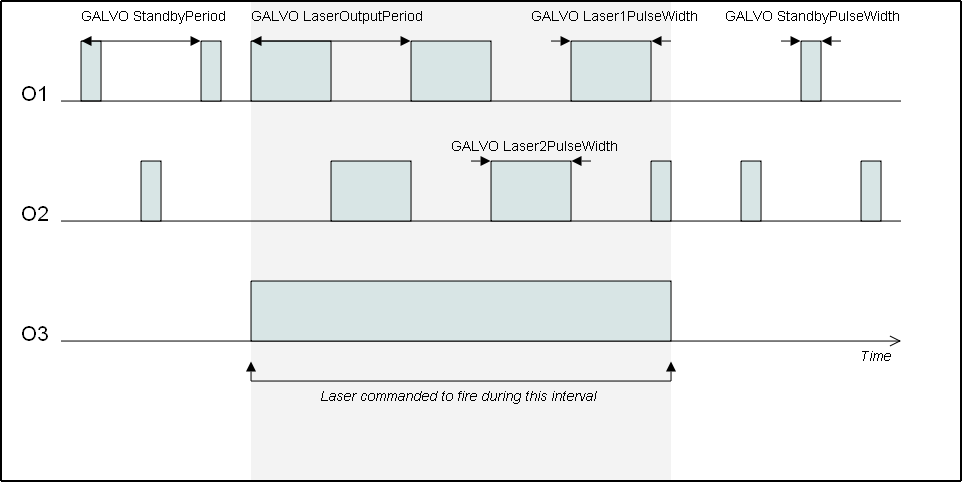
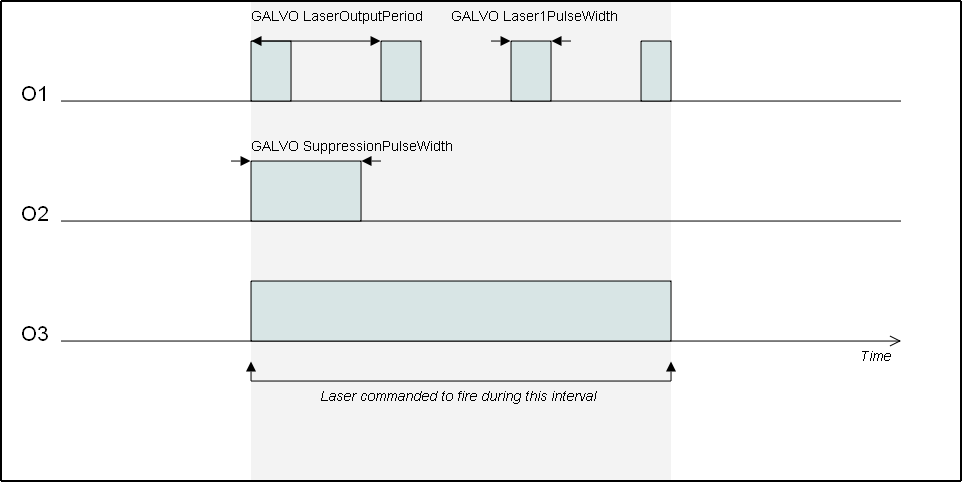
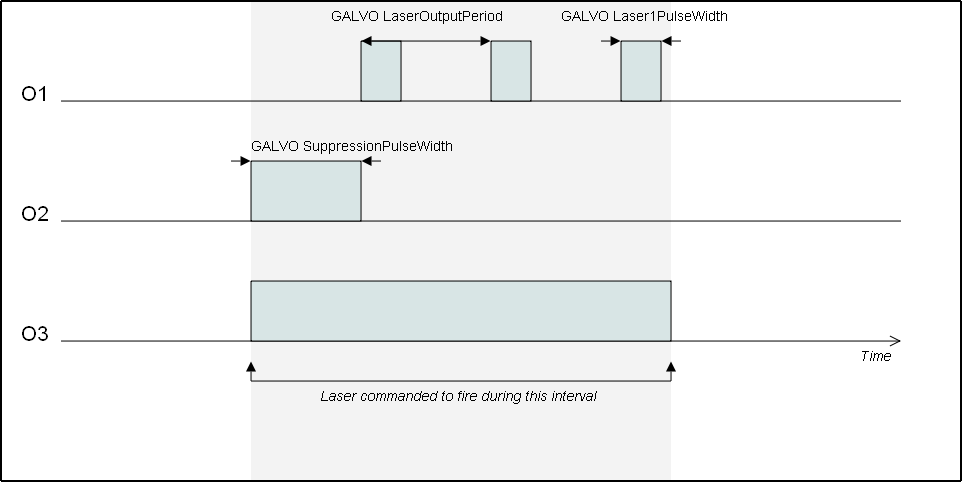
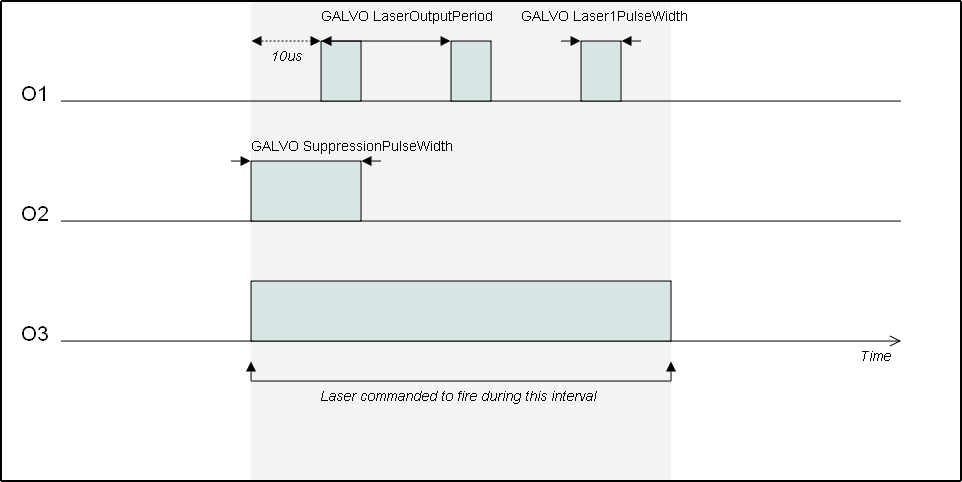
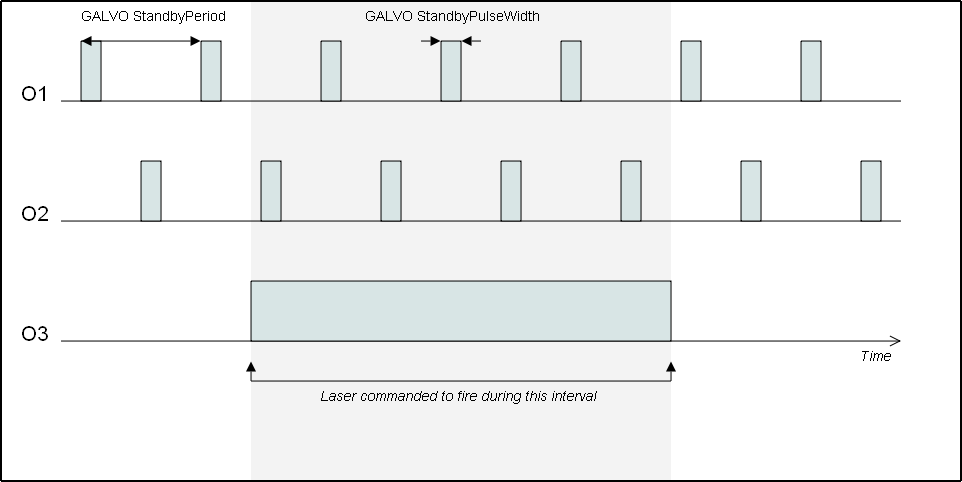
When the GalvoConfigureLaserMode() function executes, the laser interface disables while the new configuration information loads. All three laser output signals become inactive.
function GalvoConfigureLaserMode($axis as axis, $laserMode as integer)
Specifies the mode in which the laser output signals operate.
Arguments
$axis The axis on which to configure the laser mode.
$laserMode The value of the laser output mode.
Configure Laser Specifications for Selected Laser Mode
Depending on the laser mode that you selected with GalvoConfigureLaserMode(), you will have to configure the laser with the functions in this section. Refer to the Related Functions column in the $laserMode Argument Values table to see which functions are applicable. The list that follows includes the functions you use for configuring the laser and descriptions of the functions:
-
The GalvoConfigureLaser1PulseWidth() specifies the pulse width in microseconds of the O1 signal. This function applies only in laser modes 0, 1, 2, and 3 of the GalvoConfigureLaserMode() function.
-
The GalvoConfigureLaser2PulseWidth() specifies the pulse width in microseconds of the O2 signal. This function applies only in laser mode 0 of the GalvoConfigureLaserMode() function.
-
The GalvoConfigureLaserOutputPeriod() specifies the period in microseconds of the O1 signal and the O2 signal in laser mode 0. This function applies only in laser modes 0, 1, 2, and 3 of the GalvoConfigureLaserMode() function.
-
The GalvoConfigureStandbyPeriod() specifies the period in microseconds of the standby signals. This function applies only in laser modes 0 and 4 of the GalvoConfigureLaserMode() function.
-
The GalvoConfigureStandbyPulseWidth() function specifies the pulse width in microseconds of the standby signals. This function applies only in laser modes 0 and 4 of the GalvoConfigureLaserMode() function.
-
The GalvoConfigureSuppressionPulseWidth() function specifies the pulse width in microseconds of the suppression signal. This function applies only in laser modes 1, 2, and 3 of the GalvoConfigureLaserMode() function.
All of the functions in this section have a $time argument. The $time argument has a resolution of 0.01 microseconds and a maximum value of 42.9 seconds. If you specify a time that has a resolution that the GI4 or GL4 does not support, the controller rounds to the nearest supported value.
function GalvoConfigureLaser1PulseWidth($axis as axis, $time as real)
Specifies the pulse width, in microseconds, of the O1 signal.
Arguments
$axis The axis on which to configure the laser 1 pulse width.
$time The time value in microseconds.
function GalvoConfigureLaser2PulseWidth($axis as axis, $time as real)
Specifies the pulse width, in microseconds, of the O2 signal.
Arguments
$axis The axis on which to configure the laser 2 pulse width.
$time The time value in microseconds.
function GalvoConfigureLaserOutputPeriod($axis as axis, $time as real)
Specifies the period, in microseconds, of the O1 and O2 signals.
Arguments
$axis The axis on which to configure the laser output period.
$time The time value in microseconds.
function GalvoConfigureStandbyPeriod($axis as axis, $time as real)
Specifies the period, in microseconds, of the standby signals.
Arguments
$axis The axis on which to configure the standby period.
$time The time value in microseconds.
function GalvoConfigureStandbyPulseWidth($axis as axis, $time as real)
Specifies the pulse width, in microseconds, of the standby signals.
Arguments
$axis The axis on which to configure the standby pulse width.
$time The time value in microseconds.
function GalvoConfigureSuppressionPulseWidth($axis as axis, $time as real)
Specifies the pulse width, in microseconds, of the suppression signal.
Arguments
$axis The axis on which to configure the suppression pulse width.
$time The time value in microseconds.
Configure Laser Delays
You can use the GalvoConfigureLaserDelays() function to specify when the GI4 or GL4 starts or stops firing the laser based on when the laser is commanded to power on or off.
You must specify both a laser on delay and a laser off delay. Refer to the Laser On Delay and Laser Off Delay sections that follow.
function GalvoConfigureLaserDelays($axis as axis, $onDelay as real, $offDelay as real)
Specifies when the axis fires the laser relative to when you command the laser to power on and when the axis stops firing the laser relative to when you command the laser to power off.
Arguments
$axis The axis on which to configure laser delays.
$onDelay The delay time, in microseconds, that is necessary for the laser to power on. If your program uses the automatic laser mode, this value must be greater than or equal to -32,768 and less than or equal to 32,767. If your program uses the manual laser mode or if you are operating in IFOV mode, this value must be greater than or equal to -975 and less than or equal to 32,767.
$offDelay The delay time, in microseconds, that is necessary for the laser to power off. This value must be greater than or equal to -975 and less than or equal to 2,000,000.
Laser On Delay
The $onDelay argument specifies when the GI4 or GL4 fires the laser relative to when you command the laser to power on. The $onDelay argument has a resolution of 1.0 microseconds. If you specify a time that has a resolution that the GI4 or GL4 does not support, the controller rounds to the nearest supported value.
The delay can be a positive value, negative value, or zero. You can use a positive delay to prevent non-uniform marking while the mirrors accelerate to the marking speed. You can use a negative delay to mark a material that the laser must preheat before a marking move occurs.
If your AeroScript program uses the automatic laser mode, a positive delay powers on the laser after the start of a marking move sequence containing MoveLinear(), MoveCw(), or MoveCcw() moves. A negative delay powers on the laser before the start of a marking move sequence. Negative delays extend the total quantity of time of the marking move sequence because the delays occur before the marking move starts. A positive delay does not extend the total quantity of time of the marking move sequence. To use the automatic laser mode, refer to the GalvoLaser.Auto setting in the GalvoLaserOutput() function.
If your AeroScript program uses the manual laser mode, a positive delay powers on the laser after you manually turn on the laser, and a negative delay powers on the laser before you manually turn on the laser. Positive and negative delays do not extend the total quantity of time of the marking move sequence. To use the manual laser mode, refer to the LaserOutputSet() function.
Laser Off Delay
The $offDelay argument specifies when the GI4 or GL4 stops firing the laser relative to when you command the laser to power off. The $offDelay argument has a resolution of 1.0 microseconds. If you specify a time that has a resolution that the GI4 or GL4 does not support, the controller rounds to the nearest supported value.
The delay can be a positive value, negative value, or zero. You can use a positive delay to keep the laser on while the scanner goes into position. You can use a negative delay to prevent the laser from supplying too much energy at the end of a deceleration.
If your AeroScript program uses the automatic laser mode, a positive delay powers off the laser after the end of a marking move sequence containing MoveLinear(), MoveCw(), or MoveCcw() moves. A negative delay powers off the laser before the end of a marking move sequence. To use the automatic laser mode, refer to the GalvoLaser.Auto setting in the GalvoLaserOutput() function.
If your AeroScript program uses manual laser mode, a positive delay powers off the laser after you manually turn off the laser, and a negative delay powers off the laser before you manually turn off the laser. To use the manual laser mode, refer to the LaserOutputSet() function.
More About Laser Delays
- For laser delays to operate correctly, you must set the MotionUpdateRate Parameter to a value that is greater than or equal to 10 kHz. The recommended value is 100 kHz.
- The $onDelay and $offDelay values must both be less than the minimum time between laser pulses. The time between laser pulses is the duration of a marking move sequence (laser on time) added to the duration of a non-marking move sequence (laser off time). If either delay time argument is more than the time between laser pulses, the drive might not fire the laser at each pulse sequence.
- The time of a marking move sequence is determined by dividing the marking distance by the average speeds of the moves.
- The time of a non-marking move sequence is determined by dividing the non-marking distance by the average speeds of the moves.
Automatic Laser Control
IMPORTANT: Before you can use the laser, you must configure the laser as described in the Configure the Laser section.
When doing galvo motion, moves are referred to as marking moves or non-marking moves. Marking moves have the laser powered on during the whole move. Non-marking moves have the laser powered off during the move. Marking moves include all coordinated moves: MoveLinear(), MoveCcw(), and MoveCw(), and non-marking moves include all other move types.
To automatically turn the laser on or off depending on if the move is marking or non-marking, the controller supports automatic laser mode. By default, after a controller reset, all galvo axes are in automatic laser mode. You can enable automatic laser mode by using the GalvoLaser.Auto enum with the GalvoLaserOutput() function.
IMPORTANT: Automatic laser mode is available only on galvo drives.
To disable automatic laser mode and manually control the laser synchronized with motion, you can use the LaserOutputSet() or the GalvoLaserOutput() function. For more information, refer to Laser Output.
Laser delays have different behaviors in automatic and manual laser mode. Refer to GalvoConfigureLaserDelays() for more information.
IMPORTANT: Aerotech recommends that you set the MotionUpdateRate Parameter equal to the position update rate of the drive to more accurately synchronize the laser to the start or end of a move than at lower motion update rates.
function GalvoLaserOutput($axis as axis, $laserState as GalvoLaser)
Specifies how the laser on a galvo axis is controlled.
Arguments
$axis The axis on which to configure the laser state.
$laserState The mode to use to control the laser.
enum GalvoLaser
| enum GalvoLaser
Off = 0 On = 1 Auto = 2 end |
More About Automatic Laser Control
-
Axes 1 and 2 of a galvo drive must be enabled for the laser to turn on during automatic or manual laser mode.
-
If you abort motion on a galvo drive while the laser is manually powered on, the laser powers off and the galvo drive resets to automatic laser mode.
Configure Galvo Calibration
To compensate for optical effects of the galvo head and lens, you must configure Galvo 2D Axis Calibration for your marking patterns to be correct. You can edit the Galvo 2D Axis Calibration configuration in the Configure workspace. See the Calibration Topic for more information.
Optimize Laser Power
If you want the controller to change the power of the laser based on the position of the two galvo axes, use Galvo Power Correction. You can edit the Galvo Power Correction configuration in the Configure workspace. See the Calibration Topic for more information.
Advanced Features
The functions in this section supply additional advanced configuration functionality for the GI4 or GL4.
Use GalvoEncoderScaleFactorSet() to enable "marking on the fly" functionality on the specified axis of the GI4 or GL4. This feature lets the drive monitor the position of an external encoder. The drive adjusts the position of the scanner to compensate for changes in the external position.
You can use "marking on the fly" functionality in many applications. For example, you might want to draw a pattern on a part that is continuously moving through the field of view of the scanner during the marking process (the part might be on a conveyor belt).
For the GI4 or GL4 to correctly adjust the position of the scanner, you must specify the ratio of scanner counts to encoder counts. Specify this ratio to the $encoderScaleFactor argument. If encoder adjustment is being applied to two GI4 or GL4 axes, then you must issue this function twice (one time for each axis). If you need to change the $encoderScaleFactor argument after this function was issued, you must first issue GalvoEncoderScaleFactorSet() with a value of 0.0. If you do not zero the scale factor first, the controller step changes the position command, which causes a large current increase in the motor. You can use a different scale factor in each function. Specify a value greater than -32,768 and less than 32,767 for $encoderScaleFactor.
When the GalvoEncoderScaleFactorSet() function executes, the external position counter for the specified axis clears and encoder adjustment starts at the current position of the scanner.
To deactivate "marking on the fly" on an axis, issue this function with $encoderScaleFactor set to 0.0. If encoder adjustment is being applied to two GI4 or GL4 axes, then you must issue this function two times, in order to deactivate the feature on both axes.
Use the GalvoProjectionSetCoefficients() function to set the projective transformation coefficients that are applied on the GL4. After you specify the coefficients, use the GalvoProjectionOn() and GalvoProjectionOff() functions to enable and disable the transformation.
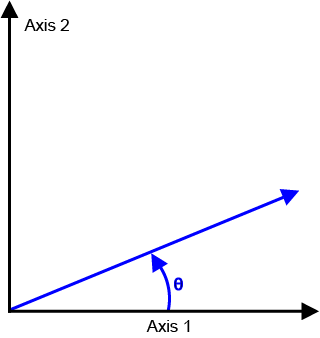
Use the GalvoRotationSet() function to specify a rotation that is applied to the first two axes of the GI4 or GL4. When you operate the controller in Infinite Field of View mode, you can use this function to correct mechanical alignment errors that occur between the galvo and servo axes. Use this function only to correct misalignment errors that occur between these axes. If you want to rotate the programmed part, refer to Transformation Functions instead.
The GalvoRotationSet() rotation is applied relative to the center of travel of the galvo axes. If you specify x as the first axis of the GI4 or GL4 and y as the second axis, use the equation that follows to calculate the rotation.
xrotated = xcos(ϴ) - ysin(ϴ)
yrotated = xsin(ϴ) - ycos(ϴ)
 function GalvoProjectionSetCoefficients($axis as axis, $coefficients[9] as real)
Specifies the projective transformation coefficients that are applied to galvo axes.
Arguments
$axis The galvo axis on which the projection is to be applied.
$coefficients The coefficients to use.
function GalvoEncoderScaleFactorSet($axis as axis, $encoderScaleFactor as real)
Enables "marking on the fly" functionality.
Arguments
$axis The axis on which to configure the encoder scale factor.
$encoderScaleFactor The ratio of scanner counts to encoder counts. This value must be greater than -32,768 and less than 32,767.
function GalvoProjectionOn($axis as axis)
Enables the projective transformation on galvo axes.
Arguments
$axis The galvo axis on which to apply the projection.
function GalvoProjectionOff($axis as axis)
Disables the projective transformation on galvo axes.
Arguments
$axis The galvo axis on which to disable the projection.
function GalvoRotationSet($axis as axis, $angle as real)
Specifies an angle of rotation that is applied to galvo axes.
Arguments
$axis The galvo axis on which the rotation is to be applied.
$angle The angle in degrees.
Galvo Wobble
Use the GalvoWobbleSetConfiguration() function to configure the galvo wobble feature. When the GI4 or GL4 does marking motion, the galvo wobble feature generates an oscillatory pattern and the controller combines that pattern with the position command of the drive. The oscillatory pattern increases the width of the marking line.
Set the $amplitudePerpendicular argument to control the width of the marking line. Set the $amplitudeParallel argument with the $frequency argument to control the overlap that occurs between each wobble oscillation.
Set the $wobbleMode argument to control if the $frequency of the repeated wobble pattern is time-based or distance-based. When you use time-based mode, the controller repeats the wobble pattern at a fixed time interval. When you use distance-based mode, the controller repeats the wobble pattern at a fixed distance. In distance-based mode, the speed of the marking vector controls the time at which the controller repeats the wobble pattern. To create a uniform overlap of the wobble pattern during acceleration and deceleration, Aerotech recommends that you use the distance-based mode.
Table: Galvo Wobble Mode Values
|
Value |
Name |
Description |
|---|---|---|
|
GalvoWobbleMode.TimeBased |
TimeBased |
Wobble is repeated at a fixed time interval |
|
GalvoWobbleMode.DistanceBased |
DistanceBased |
Wobble is repeated at a fixed vector |
function GalvoWobbleSetConfiguration($axis as axis, $amplitudeParallel as real, $amplitudePerpendicular as real, $frequency as real, $wobbleMode as GalvoWobbleMode, $wobbleType as GalvoWobbleType)
Configures the wobble feature, which generates a wobble pattern that is added to the motion command of a galvo axis.
Arguments
$axis The galvo axis on which the galvo wobble is to be applied.
$amplitudeParallel The amplitude of the wobble shape parallel to the vector path.
$amplitudePerpendicular The amplitude of the wobble shape perpendicular to the vector path.
$frequency The frequency of the wobble oscillation. Specified in hertz for time-based mode or user units for distance-based mode.
$wobbleMode Specifies whether the wobble is repeated based on a fixed time or a fixed vector distance.
$wobbleType The type of figure that is generated by the wobble.
enum GalvoWobbleMode
| enum GalvoWobbleMode
TimeBased = 0 DistanceBased = 1 end |
enum GalvoWobbleType
| enum GalvoWobbleType
Ellipse = 0 Figure8Parallel = 1 Figure8Perpendicular = 2 end |
Wobble Type
Set the $wobbleType argument to control the type of wobble pattern that the controller generates.
Table: Galvo Wobble Type Values
|
Value |
Name |
Description |
|---|---|---|
|
GalvoWobbleType.Ellipse |
Ellipse |
An ellipse shape |
|
GalvoWobbleType.Figure8Parallel |
Figure8Parallel |
A figure 8 shape parallel to the vector path |
|
GalvoWobbleType.Figure8Perpendicular |
Figure8Perpendicular |
A figure 8 shape perpendicular to the vector path |
Refer to the figures that follow for the different WobbleType patterns.
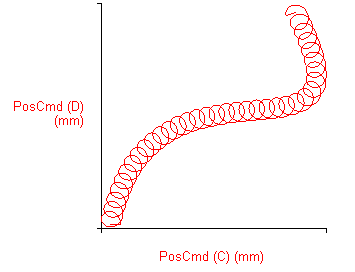
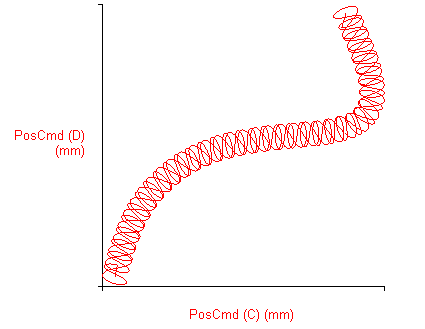
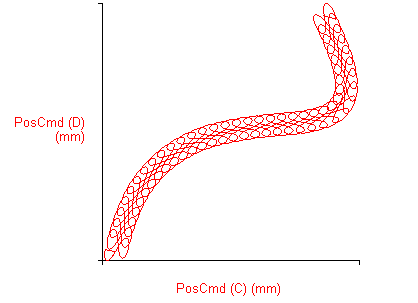
Use the GalvoWobbleOn() function to enable the galvo wobble feature that was previously configured with GalvoWobbleSetConfiguration(). When you enable the galvo wobble feature, the controller combines the wobble motion with the marking motion.
Use the GalvoWobbleOff() function to disable the galvo wobble feature.
function GalvoWobbleOn($axis as axis)
Enables the galvo wobble feature.
Arguments
$axis The galvo axis on which the galvo wobble is to be applied.
function GalvoWobbleOff($axis as axis)
Disables the galvo wobble feature.
Arguments
$axis The galvo axis on which the galvo wobble is to be disabled.


